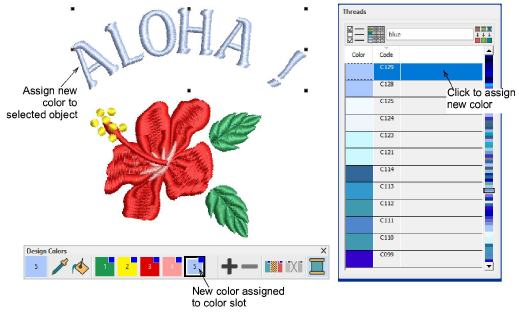
Rather than substitute design colors, you may want to add new colors to the Design Colors palette. Click the Add Palette Color button to add a new color slot to the end of the palette. This will be assigned an arbitrary color. Browse through the Threads list and single-click to assign a thread to the new color slot.
Use + and - buttons to add or remove color slots on the Design Colors toolbar.
Click Threads >> to open the docker.
Click Select Thread Charts to select a preferred thread chart.
Select a color on the toolbar. The Threads docker automatically locates the nearest matching thread.
Single-click to replace the selection on the toolbar.
Alternatively, click Match All Design Colors. All colors in the toolbar will be matched automatically to the closest threads.
Add-ons
Get started & learn faster with...


