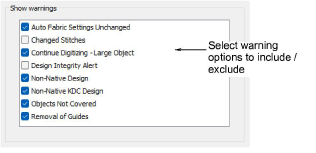
Some warning messages may become distracting. Use the User Interface Settings > Warnings tab to switch off warnings. You can re-enable them at any time.
Warning messages may include:
|
Message |
Details |
|
Auto fabric settings unchanged |
This appears if you have chosen to work with an auto-fabric and wish to save changes made to object properties. Any changes are saved to the template, not to the fabric itself. Such changes are overridden by current fabric settings. See also Fabrics & densities. |
|
Changed stitches |
This message appears when outputting designs for production, depending on whether stitches need to be regenerated to comply with a changed machine format. See also Output designs for production. |
|
Continue digitizing - large object |
This message appears when attempting to continue digitizing a large object. For example, a large run object created by Reef PhotoStitch. See also Continue digitizing. |
|
Design integrity alert |
This message appears if the software detects a problem with a design file. If you see an alert, you should use Undo to return the design to an error-free state. Save the design. Then save a separate instance of the design up to the point the alert is generated. Send both designs to Wilcom Support for analysis. Turning off this message also turns off design integrity checking. |
|
Non-native design |
This message appears when opening ‘machine files’ of unknown origin. Machine files cannot be scaled by more than approximately ±5% since their stitch count does not change. By contrast, design or ‘outline’ files such as native EMB, can be scaled by any factor as stitches are dynamically regenerated. See also Machine file recognition. |
|
Non-native KDC design |
This message appears when attempting to map a non-native design to a Keyboard Design Collection in Design Explorer. See also Keyboard Design Collections. |
|
Objects not covered |
This message appears when exporting multi-hooped designs where not all objects are covered by a single hooping. See also Output multi-hooped designs. |
|
Remove guides |
When using the ruler menu or shortcut key to remove guides, this warning message appears by default. See Rulers & guides for details. |
Add-ons
Get started & learn faster with...