Hatch Embroidery allows you to turn rulers on and off and create guides for more accurate digitizing. These make it possible to accurately position and size objects and whole designs. The unit of measurement – mm or inches – overrides the regional settings in the MS Windows® Control Panel. The ruler scale adjusts with the current zoom setting.
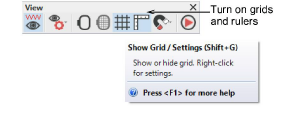
Turn on grids and rulers via the View toolbar.
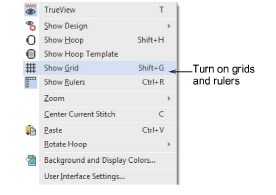
Alternatively, right-click a blank part of the design window to invoke the popup menu.
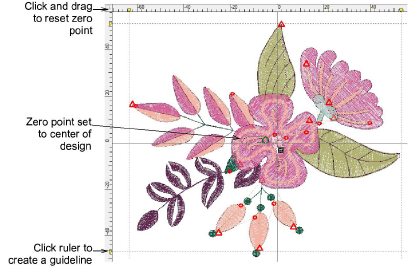
Reset the ruler zero point by clicking and dragging the box in the top left-hand corner to a point on the design. This becomes the new zero point – X,Y (0,0). The grid always aligns with the rulers.
To create a guide, click on either ruler – horizontal or vertical – and click-and-drag into position. Multiple guides can be created and just as easily removed.
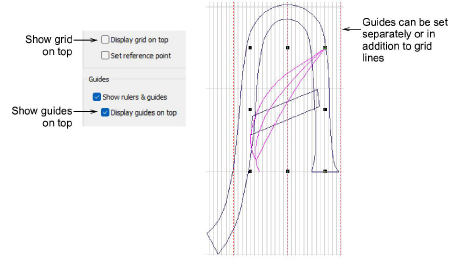
By default, any guides you bring into the design window appear on top of embroidery, vectors, and bitmaps. By unticking the ‘Display guides on top’ checkbox, guides appear beneath.
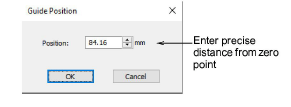
For more accurate positioning, double-click the yellow guide handle. In the Guide Position dialog, enter a precise distance from the zero point, and click OK.
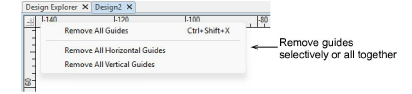
To remove guides selectively, drag the yellow guide handle off the design window. To remove all guides – horizontal, vertical, or both – right-click anywhere on the horizontal or vertical rulers to access a popup menu with the following options.
The ruler 0/0 point only affects alignment in the design view. It does not affect the alignment or center point on the machine. This is a separate setting to hoops, which does affect alignment on the machine.
Depending on the colorway, you may need to adjust guide display colors in order to view them against the background color.