Click View > Snap to access ‘snap’ toggles – snap to grid, snap to guides, and snap to objects. Right-click for settings.
|
|
Click View > Snap to access ‘snap’ toggles – snap to grid, snap to guides, and snap to objects. Right-click for settings. |
We’ve made the ‘Snap’ feature smarter and more flexible, giving you even greater control when digitizing designs. For fast, accurate alignment, adjust Snap settings via the Options dialog. Use ‘snap to objects’ to precisely contour outlines to fill shapes. To temporarily disable Snap options as you digitize, hold down the Alt key.
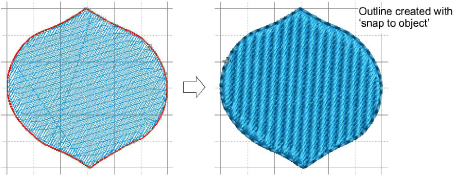
The following improvements make snapping faster and more reliable:
|
Improvement |
Details |
|
Snap to objects |
Easily snap points to edges, paths, and centers of existing embroidery objects for faster, more accurate alignment. |
|
Improved closed shapes |
When finishing a closed object, points now snap automatically to close cleanly. |
|
Independent snap grid |
Use a visible 10 mm grid for scale, while snapping points to a finer 1 mm or 0.5 mm grid for precision. |
|
Custom snapping radius |
Adjust sensitivity to suit your workflow, or force snapping when you need absolute accuracy. |
|
Clearer feedback |
Snapped elements are highlighted, so you always know exactly where your point is landing. |
Add-ons
Get started & learn faster with...