Click View > Show Grid to show or hide grid. Right-click for settings.

Click View > Show Rulers & Guides to show or hide rulers and guides. Right-click for settings.
|
|
Click View > Show Grid to show or hide grid. Right-click for settings. |
|
|
Click View > Show Rulers & Guides to show or hide rulers and guides. Right-click for settings. |
We’ve upgraded the Grid and Guides feature to provide more flexibility, better visibility, and faster design alignment. These improvements make it faster to align, easier to measure, and simpler to repeat patterns, saving time while boosting accuracy. Power users who rely heavily on grids will see a real productivity lift.
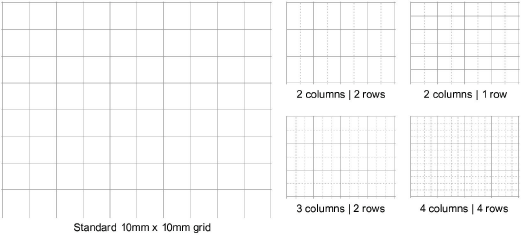
You can now work with two grid levels – a primary grid and a finer sub-grid – for added control, with independent spacing for horizontal and vertical axes. Enhanced visibility options include two-color grids to distinguish major and minor lines, along with solid, dashed, or dotted styles for clarity at any scale. Major grid lines are more prominent, making it easier to track key measurements such as 10 mm intervals when working with finer grids.
Grid spacing is fully customizable, allowing multiple intervals – e.g. 10 mm and 5 mm – for symmetry and layout control. Floating guides can be positioned visually or set numerically, similar to CorelDRAW®.
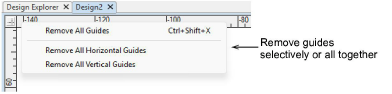
Usability has also been improved: ruler zero points and guide positions are now saved with the design, and spacing changes correctly prompt you to save. Grid and guide display order can be adjusted to suit your workflow, and guides can be quickly removed individually or all at once via the rulers.
Add-ons
Get started & learn faster with...