Click View > Snap to access ‘snap’ toggles – snap to grid, snap to guides, and snap to objects. Right-click for settings.
|
|
Click View > Snap to access ‘snap’ toggles – snap to grid, snap to guides, and snap to objects. Right-click for settings. |
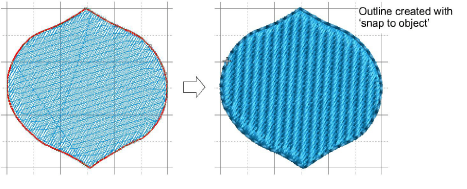
The Snap feature helps you place points and objects with absolute accuracy while digitizing. Instead of carefully nudging objects into place, you can let the software ‘snap’ them automatically to nearby grid lines, guides, or other vector and embroidery object outlines. Snapped elements are highlighted, so you always know exactly where your point is landing. This makes it faster to create neat, aligned, and symmetrical embroidery designs.
Optionally, activate any combination of...
|
Option |
Details |
|
Snap to grid |
Reference points, control points or leading edges of objects snap to grid during digitizing, sizing, reshaping, or positioning operations. |
|
Snap to guides |
‘Snap’ can be set for guides independently of grid lines. Reference points, control points or leading edges of objects snap to guides during digitizing, sizing, reshaping, or positioning operations. |
|
Snap to objects |
Easily snap points to edges, paths, and centers of existing embroidery objects for faster, more accurate alignment. |
Add-ons
Get started & learn faster with...