Use Create Layouts > Buttonholes to show Buttonholes tab of Object Properties docker. Use Place Buttonholes to place a string of buttonholes with all the necessary stitching.
|
|
Use Create Layouts > Buttonholes to show Buttonholes tab of Object Properties docker. Use Place Buttonholes to place a string of buttonholes with all the necessary stitching. |
Add a line of evenly spaced buttonholes to a design with the Add Buttonholes tool.
1Open or create a design requiring buttonholes. Or open a product backdrop.
2Select the Buttonholes tool. The Object Properties docker opens.
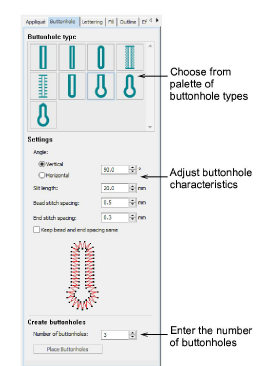
3Enter the number of the buttonholes your design requires and choose from a palette of buttonhole types.
4Click the Place Buttonholes button in the docker.
5Click to place the first buttonhole and drag a line – horizontal or vertical – to the last buttonhole position.
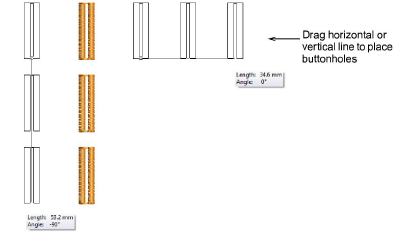
6Use the measure tooltip as a guide and click to complete.
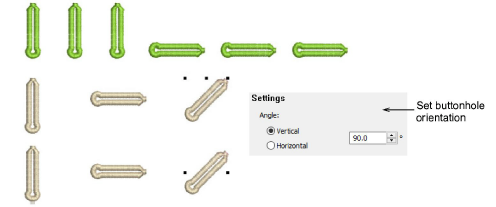
7Buttonhole orientation can be adjusted in Object Properties.
Tip: Select the Snap to Grid option as preferred. Reference points, control points or leading edges of objects snap to grid during digitizing, sizing, reshaping, or positioning operations. See Grids & hoop templates for details.
Add-ons
Get started & learn faster with...