Use Edit Objects > Multi Blend to generate color blends, perspective effects and shading in selected objects.
|
|
Use Edit Objects > Multi Blend to generate color blends, perspective effects and shading in selected objects. |
To streamline your workflow, you can save your preferred settings as a custom profile and reapply it to new objects. Your profile can include selected colors, fill types, and effects – offering consistency, speed, and creative control across other objects in the same design.
1Select a suitable object – Satin or Tatami.
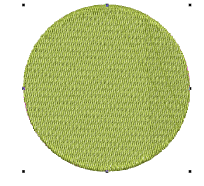
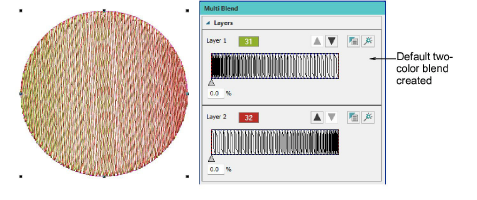
2Click the Multi Blend icon. A default effect is immediately applied and the Multi Blend docker opens.
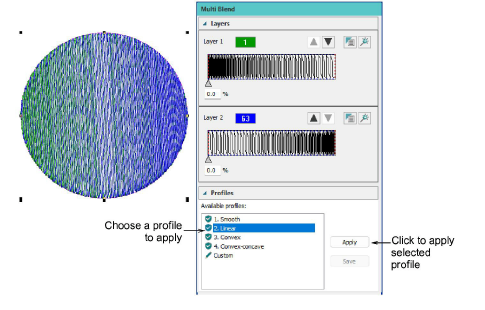
3In the Profiles panel, choose a preset and click Apply.
4Use the Layers panel to adjust settings and effects for selected layers. The Layers panel works in combination with the Object Properties docker and Design Colors toolbar.
5Save any effective combination as a profile for future reuse. Click Custom in the Profiles panel and click Save.
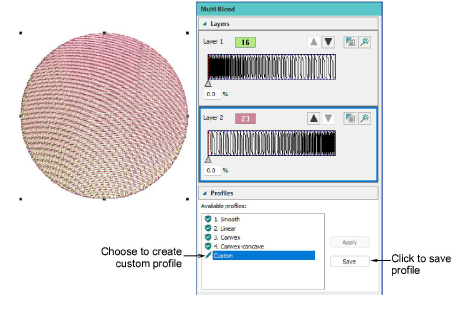
6The same profile can then be applied to other objects using any combination of colors, fills, and/or effects. Select the object, choose the profile, and click Apply.
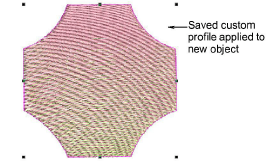
To save a custom profile, create an object using your custom profile.
Save it as an EMB file – e.g. ‘sunset-custom-blend.emb’.
To reuse, open the file and copy the object’s settings to the current profile (overwriting it).
Apply the profile to other objects in your design.
Add-ons
Get started & learn faster with...