Use Digitize > Fill Holes to fill holes via creating new objects based on the hole boundaries of selected object with the current fill stitch type.
|
|
Use Digitize > Fill Holes to fill holes via creating new objects based on the hole boundaries of selected object with the current fill stitch type. |
The Fill Holes function does the opposite as Digitize Holes. Use the tool to fill holes in closed objects by creating new objects based on existing holes.
1Select the source object containing holes.
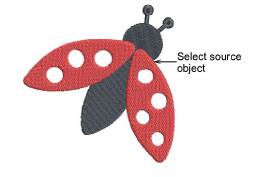
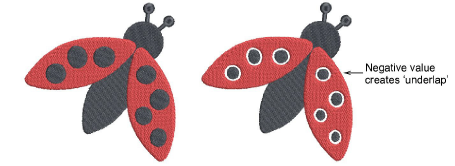
2Click the Fill Holes tool. Hole boundaries are converted to closed objects with the same fill stitch settings, stitch angle, stitch effects and thread color as the source object. Edit as necessary.
Optionally, right-click the Fill Holes tool to access the Embroidery Settings > Overlap tab. Set a nominal overlap margin.
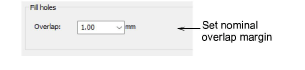
Softer fabrics may require more overlap to prevent gaps from forming.
To overlap the filled holes and the original object, enter a positive offset – e.g. 1.00. Overlapping objects prevent gaps forming.
To leave a gap between the filled holes and the original object, enter a negative offset – e.g. -1.00.
Add-ons
Get started & learn faster with...