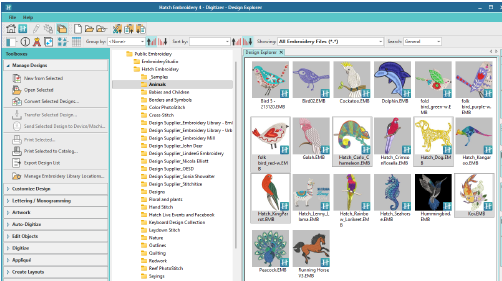
Design Explorer opens in its own tab on the design bar. It has five components – two toolbars, a toolbox, a navigation tree, a design display area, and an info panel.
|
Component |
Function |
|
Toolbox |
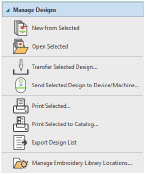
Use the toolbox to open selected designs and convert, print, or output them to any connected embroidery machine or data media. Use it also to find folders containing designs and add/remove folders to/from the library.
|
|
Navigation tree |
Navigating to design folders with Design Explorer is similar to browsing with File Explorer. View any supported file type residing in design folders. Designs can be searched, sorted, grouped, and browsed by name and other information. Right-click the navigation tree to access a popup menu. Use it to copy and delete without leaving the software. 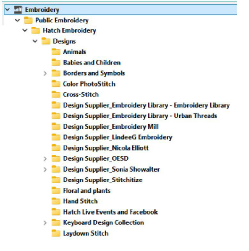
Design Explorer is ‘virtual’ in the sense that any designs on your system can be located and displayed within the library. You can add folders both in File Explorer and in the Design Explorer itself. The initial folder structure is created by your installation. However, any folders on your local network which contain embroidery designs or artwork can potentially be included and viewed in Design Explorer. |
|
Design display |
The design display area shows any designs in selected folders corresponding to the filter selected and search criteria entered in the View toolbar. Search or sort the entire library or any chosen folders on any criteria selected. Use this toolbar also to customize the design display view. See below. |
|
Design details |
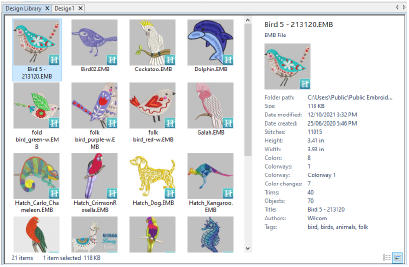
When a design is selected, summary information is displayed in the Details or Preview panes, depending on which is activated. The pane may appear at the bottom or to the side, depending on your version of Windows. Some fields, such as ‘Comments’, can be edited and saved to the design for future reference. See also View design information.
|
|
Standard (Manage Designs) |
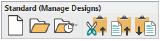
Create new designs, open existing designs, open recent designs, and cut, copy and paste selected designs.
|
Add-ons
Get started & learn faster with...