Copy & paste designs

Copy.png 

Click Standard > Copy to copy the selection and place it on the clipboard. This tool is also available via Edit menu.

Cut.png 

Click Standard > Cut to cut the selection and place it on the clipboard. This tool is also available via Edit menu.

Paste.png 

Click Standard > Paste to paste contents of the clipboard. This tool is also available via Edit menu.

The Copy/Paste commands allow you to copy and paste designs from one folder to another from within Design Explorer. This may be useful when sorting design categories or preserving or archiving original designs.

To copy & paste designs...

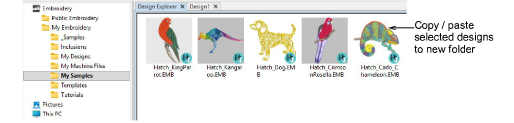
1Select one or more designs to copy or cut. To open multiple designs simultaneously, hold down the Ctrl key as you select.

CopyPasteDesigns1.png


2Using the standard Copy/Cut commands on the Standard (Manage Designs) toolbar, copy the selected design/s to the Clipboard.

StandardToolbarManageDesigns00043.png


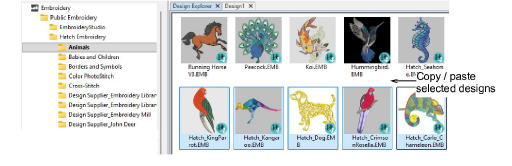
3Choose another folder in the navigation tree and click Paste. The selected designs are copied or transferred to the new folder.

CopyPasteDesigns2.png


Related topics