Use
Manage Designs > Convert Selected Designs to convert the design
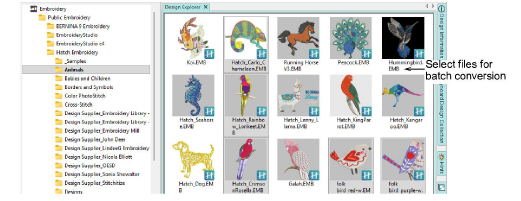
selected in the Design Explorer
window into different file types.
Use
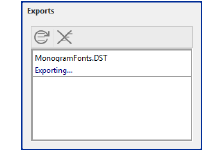
View (Manage Designs) > Exports to view the export status of
the current session. Conversion to older formats or machine file
is performed as a background task.
By default Hatch Embroidery saves
designs to its native EMB format.
This contains all information necessary both for stitching a design and
for later modification. The Convert Selected Designs tool
prepares production-ready outputs from selected designs in one step using
a saved output profile. A profile can include:
Design files: one or more EMB file
formats. These may include formats used by customers.
Machine files: one or more formats
– e.g. DST, PES, EXP.
Set a target destination in the profile
or choose at run time.
To convert multiple designs...
1Navigate to a folder
in your design library and select one or more designs to convert. To open
multiple designs simultaneously, hold down the Ctrl key
as you select.
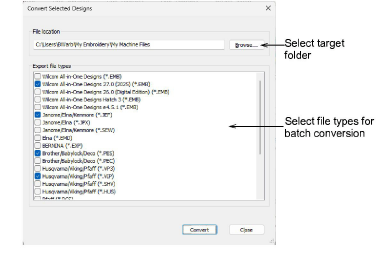
2Click the Convert
Selected Designs icon. The dialog lists all design and machine
file formats the software supports.
3Click Browse
to locate a destination folder for the converted designs.
4Under ‘Export file
types’, select what you need:
Design files: choose one or more
EMB file formats. These may include formats used by customers.
Machine files: choose one or more
formats – e.g. DST, PES, EXP.
5Click Convert to
start the conversion. The converted designs will be placed in the nominated
folder.
Tip: Open the
Exports docker to view the export status
of the current session. Conversion to older formats or machine file is
performed as a background task.