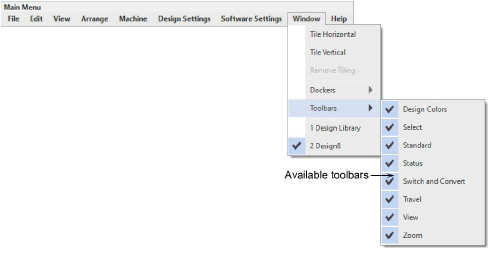
The main menu and toolbars are normally docked at the top of the screen above the design window. Use both to access common commands. As you get more familiar with them, you can speed things up by using keyboard shortcuts. For a list of available toolbars, go to the Window menu...
Hatch Embroidery includes a Context toolbar which changes according to the selected tool. If you have no tools selected, you will see droplists for machine, machine model, and hoop. Here you can also set your measurement units – Metric or U.S. – and adjust screen background settings. See also Hoop selection.

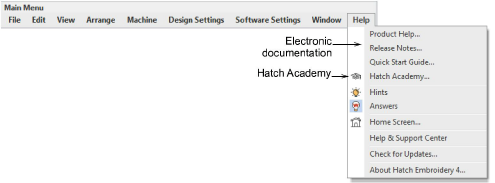
The Help menu provides access to online help, release notes, the quick start guide, and Hatch Academy. Hatch Academy offers free Embroidery Basics courses alongside premium training, projects, and webinars to help users develop their embroidery skills. Trial users have limited course access, with full access available upon software purchase.
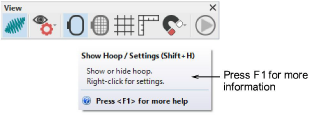
Tip: Tooltips provide a brief summary of tool characteristics. Online help provides quick access to step-by-step instructions. Context-sensitive help is available for tools and dialogs by pressing the F1 key.
Add-ons
Get started & learn faster with...