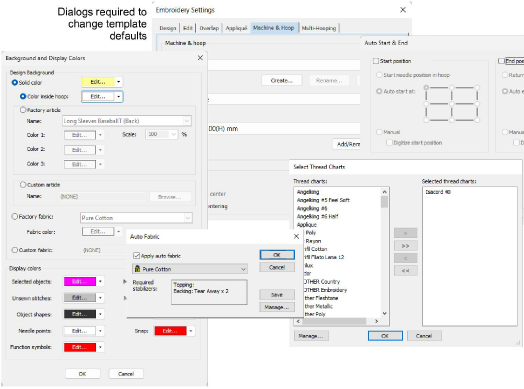
Use Customize Design / Context > Background and Display Colors to change design background and display colors.
Use Customize Design > Auto Fabric to change the properties of the design for stitching on a different fabric.
Use Customize Design / Output Design > Auto Start and End to set start and end points for the entire design.
Use Customize Design > Threads >> to toggle Threads docker display. Use it to find threads from different charts and change design colors.
Setting up a custom template may not necessarily involve changes to fabric settings or object properties. You may simply want to preset your embroidery and design settings – e.g. background colors and articles, auto start and end points, preferred auto fabric, machine settings, hoop settings, current thread charts and design palettes, etc. You can access most of these settings from the Customize Design toolbox. Embroidery settings can be accessed from the Software Settings menu.
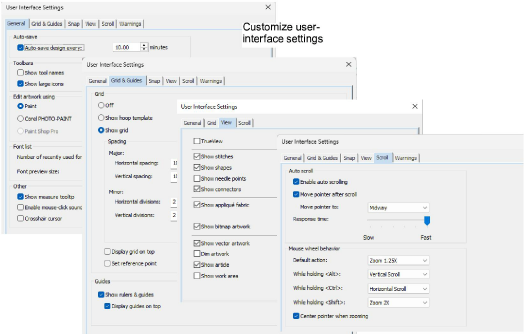
User interface settings
As mentioned, user interface settings such as grids, rulers and guides, are not saved to a template. These form part of the system defaults and are automatically saved when you close Hatch Embroidery. If, for example, you turn on grids and set a specific grid size, this will be remembered the next time you run the software. Like the embroidery settings, user interface settings can be accessed from the Software Settings menu.