Use Appliqué > Advanced Appliqué to generate open-object appliqué from one or more source objects.

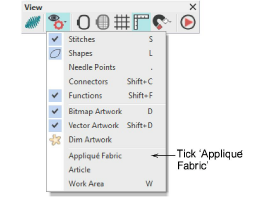
Use View > Show Design > Appliqué Fabric to show or hide background fabric / color of any appliqué objects in the design.
Several types of ‘primary object’ can be used for the creation of open-object appliqué, including any outline stitch type – Single Run, Satin Outline, etc – any filled object, or any block-digitized object.
1Create the objects you want to include in the cover stitching of your appliqué design.
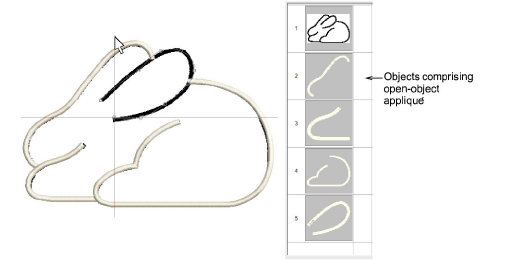
2Set the stitching properties and sewing sequence of these objects. Underlay is not required.
3Select all objects to be included in the open-object appliqué and click the Advanced Appliqué tool. Hatch Embroidery determines whether the selection is enclosed...
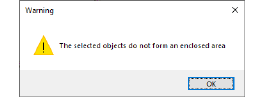
If the area is enclosed, the Advanced Appliqué dialog opens.
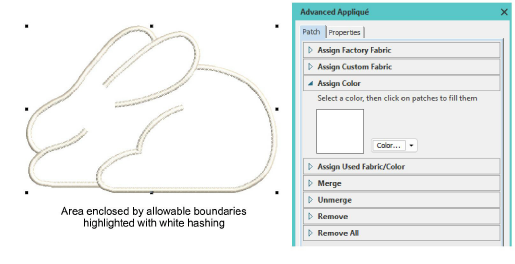
4Select a fabric from the fabrics tree or use a custom fabric or color. You have four choices:
Factory fabric: Choose from amongst the included fabric swatches and assign a color.
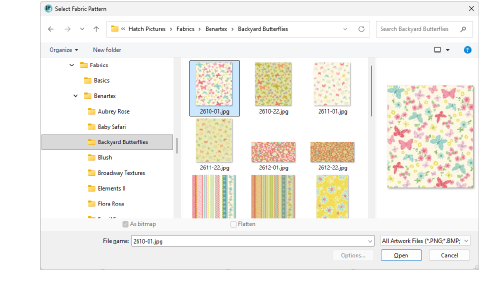
Custom fabric: Choose from amongst the many sample fabrics. The software includes generic samples as well as the Benartex range.
Color: Choose a plain color from a color swatch.
Used fabric/color: Use this option to add fabrics or colors you have already used in the design.
5Move the cursor over the design area. A white outline appears around any enclosed boundary over which the cursor passes.
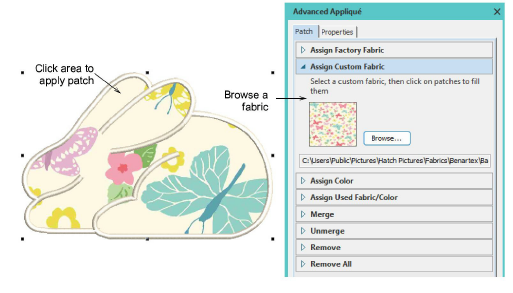
6Click the enclosed area to fill it with the chosen fabric.
7Click Close. Depending on your presets, up to three layers – placement lines, cutting lines, and tackdowns – are generated for your open-object appliqué.
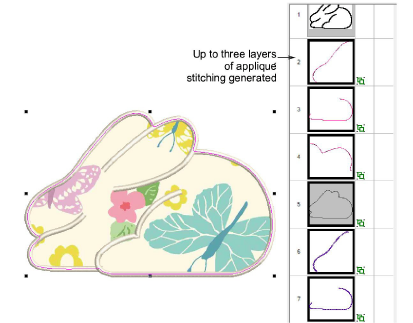
Keep sampling in the same way – either fabrics or color swatches. Each time you sample, a swatch added to the Used Fabrics and Colors palette.
If your design contains multiple boundaries, choose different fills for each. This leaf design comprises a closed shape for the perimeter with an open line for the rib.
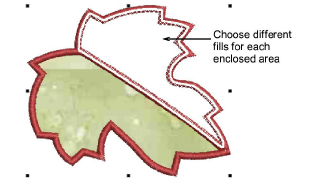
Remember to use the Show Design droplist to view appliqué fabrics.
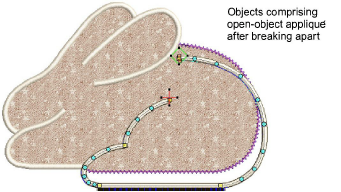
Open-object appliqué objects can be selected and manipulated in the same way as a grouped object – i.e. they can be moved, resized, skewed or rotated, using the same click and drag method applying to all objects. Reshaping of open-object appliqué objects, however, is not possible. Nor is there any way to select individual objects, primary or secondary, within open-object appliqué unless the object is first ‘broken apart’. Alternatively, use Advanced Appliqué to recover the original embroidery objects.
Add-ons
Get started & learn faster with...